Top 5 New & Free Android Apps, You Need To Know About...
Jumat, 10 Januari 2014
0
komentar
Top 5 Free Android Apps
1. Any.do To-do List & Task List
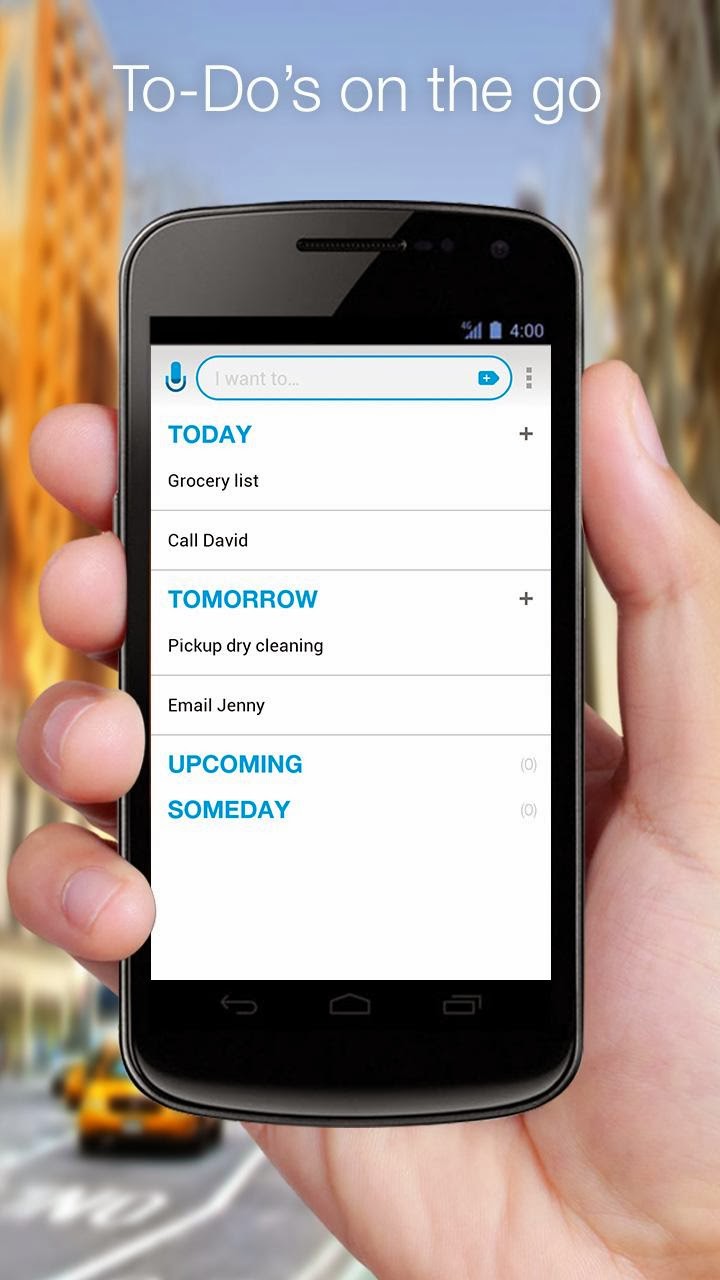 Millions use Any.do every day to remember all the tasks they want to-do and make sure they get them done. Key benefits: Seamless cloud sync, Speech recognition, Alerts, Any.do Moment, Snooze tasks, Google Task Sync, Notes, Sub tasks, Amazing Widgets, Repeating/Recurring Tasks, Missed call, Auto complete, In app actions, Gesture support & much more!
What makes this app so hot:
✔ Just like real life - Swipe a task with your finger to mark it as complete.
✔ Shake it away - Shake your device to remove all completed tasks.
✔ Powerful widgets - Add a widget to your home screen to see all the things you need to do - just when you need them.
✔ Don't miss another call - Turn missed calls into reminders.
✔ Take actions - With Any.do you can easily make calls, text, emails and even schedule meetings from within the app
✔ Make it personal - Choose your favorite app theme (white or black).
✔ Do it your own way - You can easily customize your folders, so you can organize your tasks to best suit your needs (for example: Work, Home, Errands). Plus, you can have as many folders as you wish.
✔ Your tasks, Your choice - You can switch between Date view (Today, Tomorrow, Upcoming & Someday) and Folder view, it's up to you.
2. Buzz Launcher

Download Homescreens best suited for your taste, innovate your smartphone, and share your awesome Homescreen layouts with others! Buzz Launcher Homescreens are extremely easy to apply instantly! Friends all around the world are excited to check out the most stunning Homescreens on the planet!
✔ 200,000+ beautiful and unique Homescreens available via Homepack Buzz
✔ View all homepacks in both PC&Mobile ( http://www.homepackbuzz.com )
✔ Personalized Homescreen customization with robust icon and wallpaper editing
✔ Very simple – Homescreens downloaded and implemented within 5 seconds
✔ Multiple social features and Homescreen sharing to Facebook, Twitter and Google+ via one-touch upload
✔ Compatible with Minimalist Text, Ultimate custom widget, Battery Widget Z , Power Toggles, Sol calendar and Sol Mail
✔ Unique widget features - clock, date, battery widgets, and “Create My Own Widget” provided via Buzz Custom Widget.
✔ See the most popular Homepack Designs in a glance!! You can show all your Homepacks to your friends!!!
3. Airdroid

AirDroid is a free and fast app that helps you manage your Android from a desk web browser, all over the air.
AirDroid philosophy:
✔ One less cable.
Move things on and off your Android device without a USB cable. Even when the device is not nearby.
✔ One less screen.
Send and receive SMS from your big-screen computer, without being distracted by the small-screen thing.
✔ One less worry.
Locate and lock your Android when it’s lost. Cannot get it back? Simply wipe all data remotely.
Media coverage:
✔ “This app allows you to take complete control of your Android device via your computer's Web browser.” - PCWorld
✔ “I'm sending text SMS messages from my Android phone via my browser. I can't stress how great that is.” - Gizmodo
✔ “It's a remarkably comprehensive app, operates securely, and is a free download.” - Lifehacker
✔ “It's all the little things, the things that make AirDroid a joy to use, which make it the app of the year.” - Android Police
Key features:
✔ Desktop SMS
Send & receive SMS from the comfort of your computer. Faster typing and navigation with the full keyboard and large screen.
✔ Files and Media
Move photos, videos, ringtones and any other files on and off Android, all without a USB cable.
✔ Find Phone
Locate and lock your Android when it’s lost. Cannot get it back? Simply wipe all data remotely.
✔ Manage Apps
Easier way of app search, installation and apk export.
✔ Camera and Screenshot
See through the lens of your Android camera, front and back. Or stream the screen of your Android in nearly real-time.
✔ Phone Calls, Clipboard , Url transfer and more
Call contact, share clipboard content, push url to Android and more features awaiting your discovery.
4. Hide Pictures - Hide It Pro

The app is cleverly disguised as "Audio Manager" in the App Drawer.
Disguises itself as a Audio Manager app which can be used to turn the volumes up and down. but if you Long press on the Audio Manager title the actual Hide It Pro app will launch, which is basically your secret vault of pics/videos/messages/apps etc.
-- Features in Detail --
1.) App disguised behind a fully functional Audio Manager
2.) Categorize media into folders of your choice
3.) Batch(Multi-Select) support for hiding and unhiding pictures
4.) Delete/Share/Unhide/Move pictures between albums
5.) Sort files by date/size/name and sort folders by count/name
6.) Gallery features Pinch to Zoom , Double tap to zoom , One finger hold and move zoom
7.) Slideshow with Fade, Zoom, Swipe effects
8.) Send/Share pictures
9.) Special optimization for low end phones.
10.) Video player features play/pause/forward/rewind/next video/prev video support
11.) Disappears from recent apps list
12.) Two lock screen options viz Pin and Password
13.) Escape pin/password for times when you get caught
14.) Built in encryption tool(with military standard 256-bit AES encryption) to secure your most important files
15.) Plugins for features like Private Messaging / Calls , Private Browsing , Locking Apps.
etc.
There are a lot more features like custom slideshow durations/slideshow order/effects , custom folder thumbnails etc. but i'll leave some of the secrets of the app to be discovered by the users.
5. Pushbullet
.png)
Pushbullet also lets you send push notifications to yourself and to your friends!
Why send push notifications with Pushbullet? Because it's the easiest and fastest way to send almost anything to your phone or to your friends.
What can you push with Pushbullet? Send links, pictures, files, lists, notes, and more right into your phone's notification tray, to your computer, or to a friend, really fast.
What makes Pushbullet so useful?
Simple! It's the easiest way to get things from your computer onto your phone or from your phone onto your computer. It's also great for sending things from one Android device to another, or even to friends!
- By sending a file with Pushbullet, it's automatically downloaded and waiting for you as a notification. Tapping on the notification instantly opens the file so you'll never have to go dig for the file in your email or Dropbox folders ever again.
- With Pushbullet, you can also push links right into your phone's notification tray. Just tap the notification to go to the link.
- Instead of having to look up an address all over again on your phone after having found it on your computer, you can just push the address to your phone. It will open Google Maps right from the notification, making getting to navigation a breeze.
- And that's just the beginning, you can also send checklists, notes & reminders, and more.
Pushbullet lets you take charge of your notification tray by making it easy to put whatever you want in there. Creating these smart notifications is so useful because of how easy they are to access, making the notification tray the best spot to send yourself reminders or things you want to be able to easily access later.
Pushbullet also looks and works great on tablets, check it out!
If you like my collection than please be sociable & Share it..!!
Baca Selengkapnya ....
Categories:
4.4,
airdroid,
android,
any.do,
Apps,
best android app,
buzz launcher,
free apps,
games,
hide it,
jellybean,
kitkat,
pushbullet,
top apps,
top free android apps.,
useful app